The Login Configuration in Agile.Now allows administrators to customize how users log in, manage access permissions, recover passwords, and interact with workspaces. Additionally, it supports Access Group Selection, enabling users to choose specific access groups upon login to refine their permissions dynamically.
This guide provides step-by-step instructions on configuring login settings, managing access groups, and integrating authentication flows for enhanced security.
For more details on Agile.Now authentication, refer to Understanding OpenID Connect Integration with Agile.Now.
Access Rights Information
To modify login settings, you need the Configuration Login role with read and update permissions.
- Ensure you have the
Configuration Loginrole with create and update permissions. - If tenants need to manage their login settings, grant them
Configuration Loginaccess.
Configuring Login Settings
Follow these steps to configure Login Configuration in Agile.Now.
1. Access the Login Configuration Settings
- Navigate to Settings → Configuration.
- Locate the Login Configuration section.
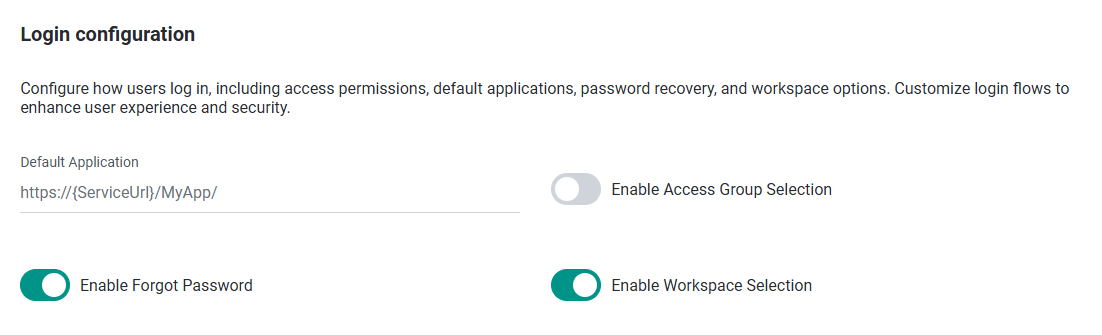
2. Configure User Login Options
Define how users log in by adjusting the following settings:
| Setting | Description | Example |
|---|---|---|
Default Application |
Defines the application users are redirected to after login. | Dashboard |
Password Recovery |
Enables users to reset their passwords if forgotten. | Enabled |
Workspace Selection |
Allows users to choose a workspace if they have multiple. | Enabled |
Note: Setting a default application improves user experience by directing users to their main workspace immediately upon login.
3. Enable Access Group Selection
The Access Group Selection feature allows users to refine their permissions dynamically upon login.
- Toggle "Enable Access Group Selection" to ON.
- Users can select either "All Access" or a specific Access Group.
Access Group Selection Logic
-
"All Access" Option:
- The user retains access to all assigned applications and permissions.
- No restrictions are applied.
-
Specific Access Group Option:
- Users can limit access by selecting a single Access Group.
- This restricts their access to only the applications and permissions within that group.
- Directly assigned permissions remain unchanged.
Important Notes:
- Access Group Selection only limits access; it does not expand it.
- If a user is assigned permissions outside of the selected Access Group, they will still retain those permissions.
Example Scenario:
- A user has two Access Groups:
- Nurse Inpatient
- Nurse Outpatient
- Both access groups have the "Login Group" toggle ON.
- When the user logs in, they can:
- Select "All Access" → Use all applications available in both groups.
- Select "Nurse Inpatient" → Use only the applications assigned to that group.
- Select "Nurse Outpatient" → Restrict access to the applications in that group.
Note: Users cannot select multiple access groups at the same time.
4. OAuth2 and Web-Based Authentication
Access Group Selection is supported in both:
- Web-browser login
- OAuth2 authentication flows
Each login request includes a JWT (JSON Web Token) with the "aid" claim, indicating the selected Access Group.
For OAuth2 integrations, refer to the Agile.Now OpenID Connect Documentation.
5. Saving and Applying Configuration
Once all required fields are configured:
- Click Save to apply the settings.
- The Access Group Selection feature will now be available upon user login.
6. Tenant-Specific Login Configuration
When a new tenant is created, they automatically inherit the global login configuration.
- If you grant tenants access to
Configuration Login, they can modify their own login settings to customize access for their organization.
Troubleshooting Login Issues
If users encounter login-related issues, refer to the following troubleshooting steps:
| Issue | Possible Cause | Solution |
|---|---|---|
| Users cannot select an Access Group. | The "Login Group" toggle is not enabled. | Enable Login Group in access settings. |
| User permissions do not change after selecting an AG. | User has directly assigned permissions. | Direct assignments override group selection. Adjust permissions accordingly. |
JWT does not include aid claim. |
OAuth2 provider is not configured correctly. | Verify OAuth2 settings and claim mappings. |
| Users are not redirected to the correct application. | Default application is not set. | Set a default application in Login Configuration. |
Conclusion
Setting up Login Configuration correctly ensures a seamless authentication experience, flexible access control, and enhanced security in Agile.Now. The Access Group Selection feature provides dynamic persona-based access to improve usability in multi-role environments.